Have a Suno MP4 saved on your computer? Open YouTube Studio and upload it as a video. If you only have an MP3, add a still image or footage and export an MP4 first. For a regular video instead of a Short, use a wide frame such as 16:9. YouTube upload help
Prepare the File You Have
- MP4. Open the file and check that the audio, duration and visuals match what you want to post. If the video already has the right frame, use it as is. How to download a Suno video as MP4
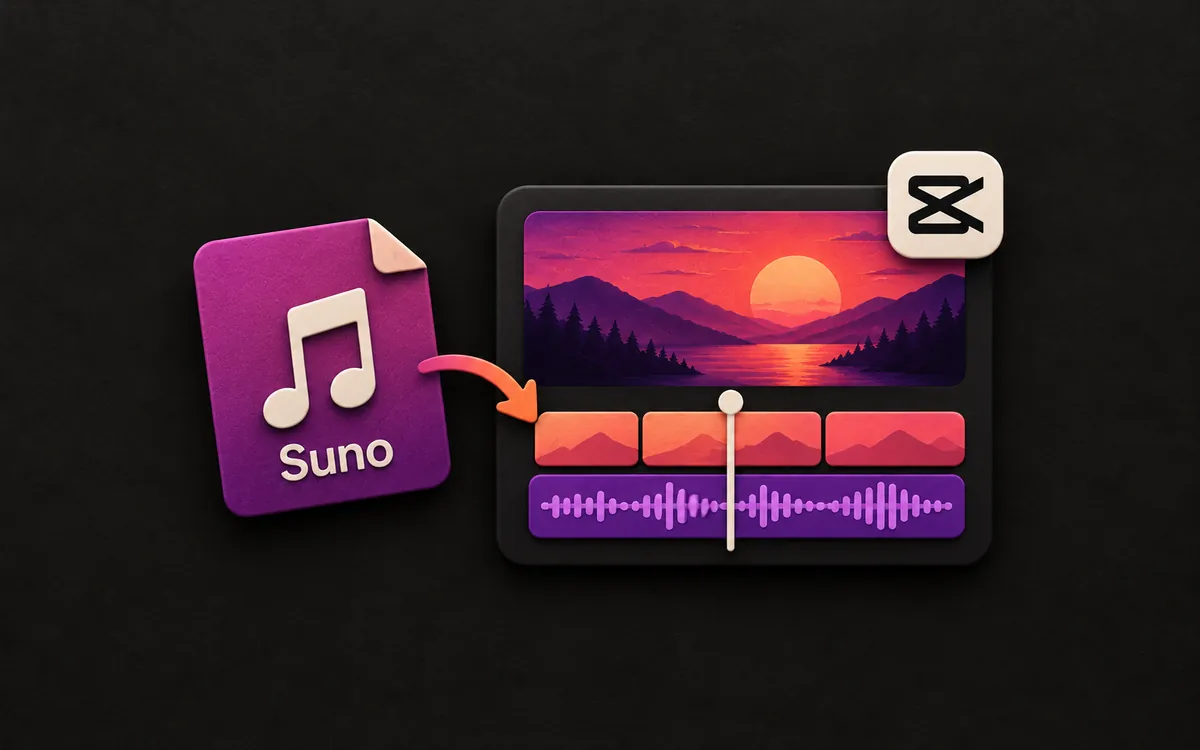
- MP3. Add the song and an image or clip to a video editor. Extend the visuals to the end of the track, then export an MP4. Play the exported file to check that the audio continues through the ending. How to add Suno music to a CapCut video
Only Have a Suno Link?
If you have permission to download the song, use SunoDown to save the available file. Download with SunoDown →
Choose a Regular Video or a Short
- Regular video. Export in 16:9. If your Suno MP4 is vertical, place it inside a 16:9 project. Use a background to fill the sides so the cover art and lyrics stay visible.
- Short. YouTube classifies new square or vertical uploads of up to three minutes as Shorts. Check the finished file’s duration and dimensions before uploading. YouTube’s Shorts classification rules
Upload the MP4 in YouTube Studio
Before you upload, confirm you have permission to post the song and visuals. If you plan to monetize, check the Suno plan you had when you created that song. Suno’s distribution and monetization guidance
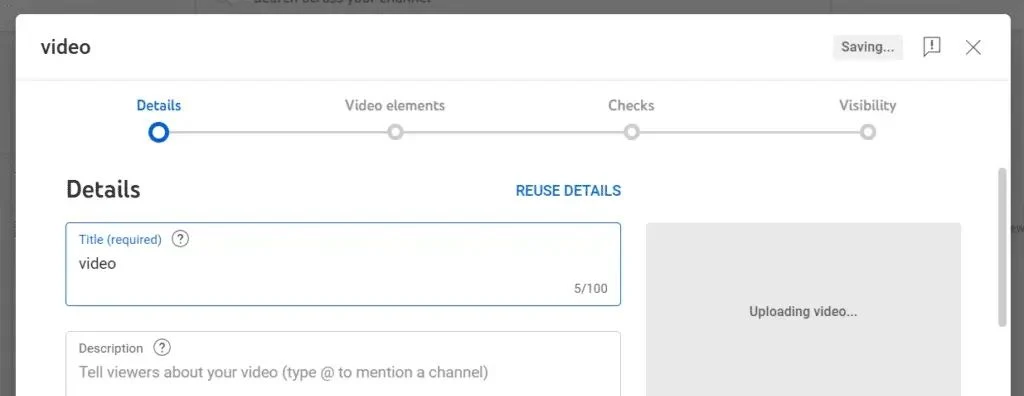
- Upload the video. On your computer, open YouTube Studio. Click Create → Upload videos and select your MP4.
- Enter the video details. Add a title and description, choose the audience setting, and disclose the AI-generated music. In Attributes, select Yes under AI use. YouTube’s AI disclosure instructions
- Review the checks. Read any copyright issues that YouTube flags before you set the video’s visibility.
- Save as Private and preview. Once the upload is ready to play, check the framing and listen to the beginning and ending. In Studio, confirm the video appears under Videos or Shorts, as intended. Change the visibility when you’re ready to share it.
If YouTube Puts Your Video Under Shorts
Check the dimensions of the exported MP4, even if the project preview looked wide. For a regular upload, export a 16:9 file and upload that file as a new video.