Keep your Suno songs in the same Spotify playlists as your favorite music. This guide covers adding MP3s on Windows, Mac, iPhone, and Android, organizing a playlist, and fixing local tracks that won’t play.
Listen to Your Suno Songs on Spotify Without Releasing Them
Spotify’s Local Files feature lets you play downloaded Suno songs for personal listening and add them to playlists alongside your usual music.
The audio stays on your device. Sharing a playlist doesn’t upload the files or publish your songs to Spotify’s public catalog.
How to Add Suno Songs to Spotify with Local Files
First, download your Suno songs as MP3s, choosing the versions you want to keep. Extract any ZIP download before importing the tracks.
If you’ve only saved a playlist inside the Suno app, download the songs as audio files before importing them. Our Suno offline listening guide explains how those options differ.
Use Spotify’s desktop or mobile app. The steps below follow Spotify’s Local Files instructions.
Spotify Local Files on Windows and Mac
- Save the MP3s in a dedicated folder, such as Music/Suno Songs.
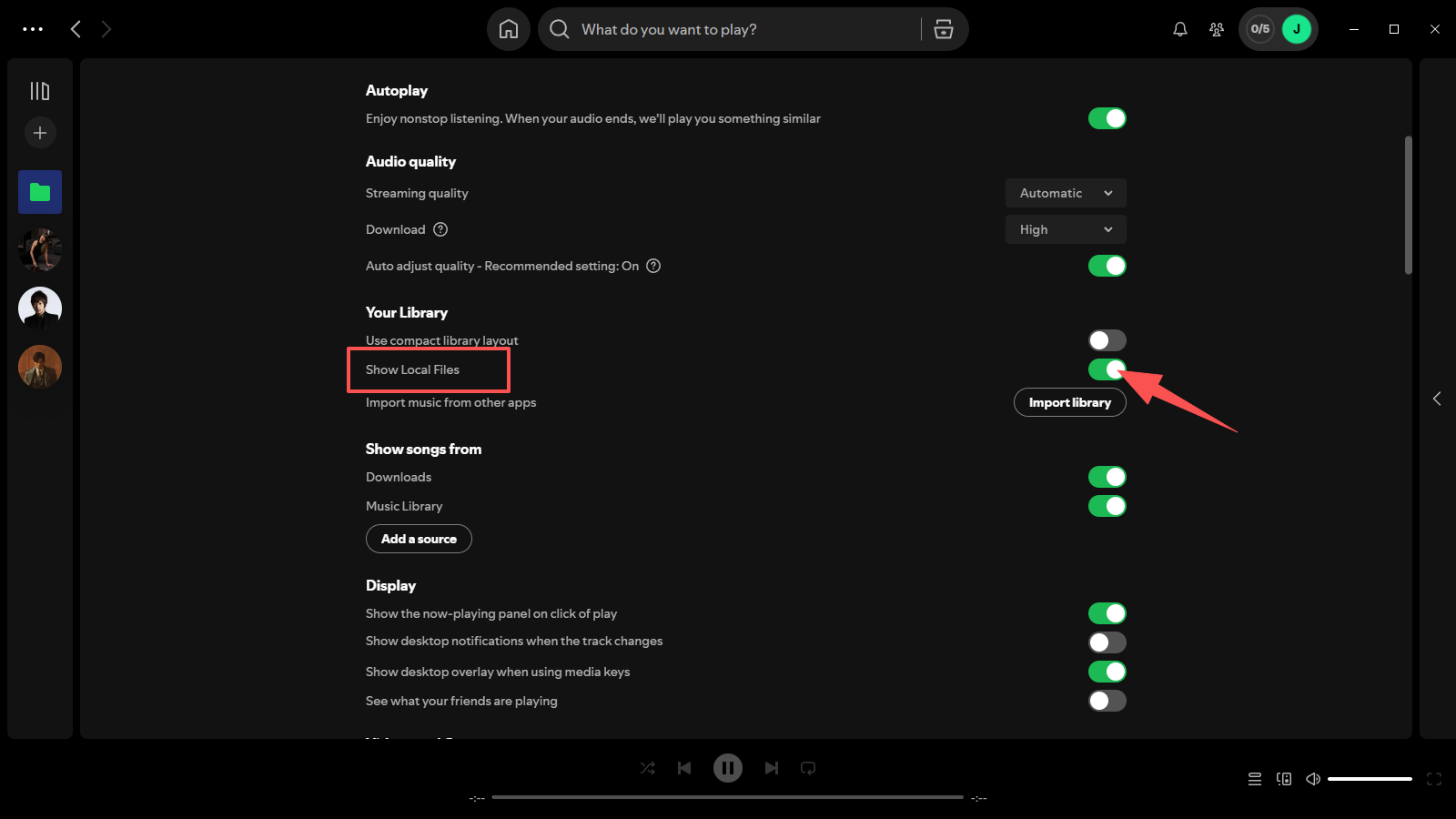
- In the Spotify desktop app, open your profile menu → Settings. Under Library, turn on Show Local Files.
- Under Show songs from, enable that folder. If it isn’t listed, choose Add a source and select it.
- Go to Your Library → Local Files to find your songs.
Spotify Local Files on iPhone and Android
In Spotify, tap your profile picture → Settings and privacy → Apps and devices. Turn on Local audio files. Your songs will appear under Your Library → Local Files once they’re stored on the phone.
On iPhone: In Apple’s Files app, copy your downloaded MP3s into On My iPhone → Spotify. If that folder is missing, restart Spotify. For help saving songs from your browser, see our mobile Suno download guide.
On Android: Save the MP3s to your phone and allow Spotify’s audio or storage access if prompted. For songs on a Windows PC, transfer the files to Android by USB first.
Add Your Suno Songs to a Spotify Playlist
Open Local Files, find the Suno song, and choose Add to Playlist from its menu. Select an existing playlist or create a new one. On desktop, you can also drag the track into a playlist.
Use clear filenames to distinguish different versions of a song.
Keep the MP3s in a permanent folder. Spotify needs access to the files to play them.
If you keep songs in cloud storage, download a local copy before adding them to Spotify. On a new computer or phone, transfer the audio files and enable Local Files there too.
Fix Suno Songs That Won’t Play in Spotify
Try the fixes below if a Suno song is missing, grayed out, or won’t play in Spotify.
| Problem | Solution |
|---|---|
| A song disappears after a file cleanup | Restore the MP3 to its original folder. If you moved or renamed it, import it again and replace the old playlist entry. |
| A track is grayed out on another device | Copy the MP3 to that device and add it through Local Files. |
| A saved MP3 is missing from Local Files | Enable Local Files, check folder access or audio permissions, and restart Spotify. |
| The MP3 won’t play in Spotify or another player | Download a fresh MP3 of the same song and add it to Spotify. |
| An old playlist entry still won’t play after reimporting | If the newly imported copy plays, remove the old entry and add the working copy. |
Disconnect from the internet and play a few imported songs to check offline playback.
If the files work elsewhere and their locations are correct, update Spotify and try importing them again before reinstalling the app.
Download Suno Songs for Your Spotify Playlist
Need the MP3 first? Paste a supported public Suno song link into our SunoDown web tool, then select MP3 Download. Save the file to your music folder and add it to Spotify with Local Files.