As Suno AI dominates the creative landscape in 2026, the demand for high-fidelity offline access has shifted from desktop to mobile. Whether you're a TikTok creator needing a custom track for CapCut or a music lover wanting a unique iPhone ringtone, waiting until you get to a PC is no longer an option.
However, mobile browsers still pose "silent" restrictions on direct audio streams. In this guide, we provide the definitive 2026 mobile solutions for SunoDown.com, ensuring you can save your AI masterpieces directly to your camera roll or file system in seconds.
Why Mobile Downloads are Tricky (And the Fix)
Most users try to "Long Press" a play button in Chrome or Safari, only to find no "Save As" option. This is because mobile OS architectures treat AI-generated streams as dynamic blobs rather than static files.
The Fix: You need a tool that "flattens" the Suno API response into a downloadable MP3/WAV container. SunoDown.com is engineered specifically to bypass these mobile headers, providing a direct link that iOS and Android can recognize as local media.
If a download link has expired, a button does not respond, or a file will not save, follow our Suno AI download troubleshooting guide to check the common causes.
For iPhone Users: The Ultimate iOS Shortcut for Suno AI
In 2026, the most efficient way to download is via the SunoDown quick online download service. This method bypasses the "Open in New Tab" loop entirely.
The 2026 "One-Tap" Logic:
- Copy the Link: Open your Suno app or website and copy the URL of the music you'd like to download.
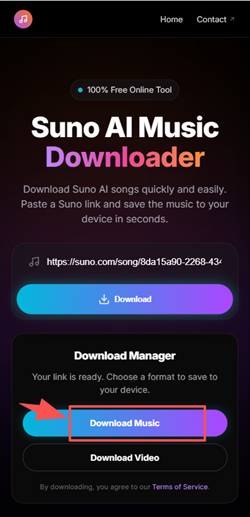
- Go to SunoDown: Use our Official SunoDown by pasting the URL and tap the "Download" button.
- Format Selection: Tap the "Download Music" option after URL phrasing is done.
- Save to Files: The song is instantly routed to the "Downloads" folder in your Files App, not buried in a browser cache.
For Android Users: Browser Extensions & One-Click Saving
Android’s file system is more flexible, but 2026 updates to "Scoped Storage" have made traditional browser downloads messier.
Best Mobile Browsers for Suno AI:
- Kiwi Browser: Supports Chrome Desktop extensions. Install the SunoDown Chrome Extension on your phone to get a "Download" button directly inside the Suno.ai interface.
- SunoDown Web-App: Simply paste your link into SunoDown.com via Samsung Internet or Chrome, tap "Download", and the file will appear in your
Internal Storage > Downloadsfolder immediately.
Progressive Web Apps (PWA): The Future of Mobile Downloading
Why clutter your phone with native apps when you can use a PWA? SunoDown.com now operates as a high-performance Progressive Web App.
How to "Install" SunoDown (No App Store Needed):
- Visit SunoDown.com on your mobile browser.
- Tap the Share icon (iOS) or Three Dots (Android).
- Select "Add to Home Screen."
Benefits in 2026:
- Zero Latency: PWAs use service workers to cache the downloader engine, making it 3x faster than the website.
- Native Feel: No URL bar, full-screen interface, and instant access from your app drawer.
- Privacy: No intrusive permissions required, unlike many "Video Downloader" apps on the Play Store.
How to Manage Your AI Music Library on Mobile
Once you’ve saved your tracks from SunoDown, here is how to use them across your favorite 2026 creative apps:
1. Importing to CapCut Mobile
Open CapCut > Audio > Sounds > Tap the Folder Icon > From Device. Your SunoDown MP3s will be waiting there for your next viral edit.
For desktop and mobile steps, follow our guide to making videos with Suno music in CapCut.
2. Setting a Suno Song as a Ringtone (iPhone)
Since Apple still requires .m4r files, download your song via SunoDown, then open it in the GarageBand app. Export it as a "Ringtone" to bypass the need for a Mac or PC.
3. Metadata Tagging
SunoDown automatically embeds the Prompt, Style, and AI Model version into the ID3 tags of your download, making your mobile library searchable by mood or genre.
Conclusion
Mobile creation is the heartbeat of AI music in 2026. By using the SunoDown PWA or our custom iOS Shortcuts, you eliminate the friction between "Generation" and "Distribution."
Ready to save your latest track? Go to SunoDown.com and paste your link now.