Updated July 30, 2026 - reviewed against Suno's official Stem Separation and Studio documentation.
To download Suno AI stems, open a song you created or uploaded, select Edit, choose Get Stems, select Split from Mix, Auto Split or Advanced Split, preview the results, and download or export the tracks. Stem Separation is a paid feature; Suno Studio multitrack export requires Premier.
What Are Suno AI Stems?
A stem is an audio track containing one musical element or a related group of elements from a full song. Instead of editing one finished stereo mix, you can work with separate parts of the arrangement.
- Vocals: lead and supporting voices
- Drums: percussion and rhythmic elements
- Bass: bass guitar, synth bass or low-frequency parts
- Instruments: guitar, piano, strings, synths and other musical layers
- Remainder: everything left after the selected part is separated
Creators commonly use stems for remixes, karaoke versions, vocal replacement, arrangement changes, mixing practice, sampling and further production in a digital audio workstation such as Ableton Live, FL Studio, Logic Pro or Reaper. If you need the original mix first, follow our guide on how to download songs from Suno AI before separating the track.
Which Suno Stem-Separation Mode Should You Use?
Suno introduced its updated stem-separation workflow in June 2026. Availability and plan requirements can change, so check Suno's current interface and official documentation before publishing or purchasing a plan.
1. Split from Mix
Use Split from Mix when you need a straightforward two-part result. Select a voice or instrument, and Suno creates that part plus the remainder of the mix. This is usually the fastest option when a large multitrack session would add unnecessary complexity.
- Create a vocal-only track and an instrumental backing track.
- Remove one instrument before replacing or re-recording it.
- Build a karaoke, rehearsal or transcription version.
2. Auto Split
Auto Split is the practical choice for most remixing workflows. It analyzes the arrangement and can produce up to 12 stems. The exact number and track types depend on what Suno detects in the song.
- Move vocals, drums, bass and instruments into separate DAW lanes.
- Rebalance several musical parts without requesting each one manually.
- Create a starting session for remixing, arrangement changes or mixing practice.
3. Advanced Split
Advanced Split gives Premier users more control over the requested parts. Suno says creators can choose from nearly 100 instrument categories, making this mode better for focused extraction than a general automatic split.
- Target a specific part such as acoustic guitar, piano, strings or percussion.
- Build a detailed session around only the instruments you intend to edit.
- Extract a part for transcription, replacement or sound-design work.
Method 1: Download Stems with Suno Get Stems
Here’s the short version: choose the song, open Edit > Get Stems, select the type of split you need, and listen to the result before downloading. The option is slightly tucked away, but the process itself is straightforward.
Step 1: Pick the Right Song
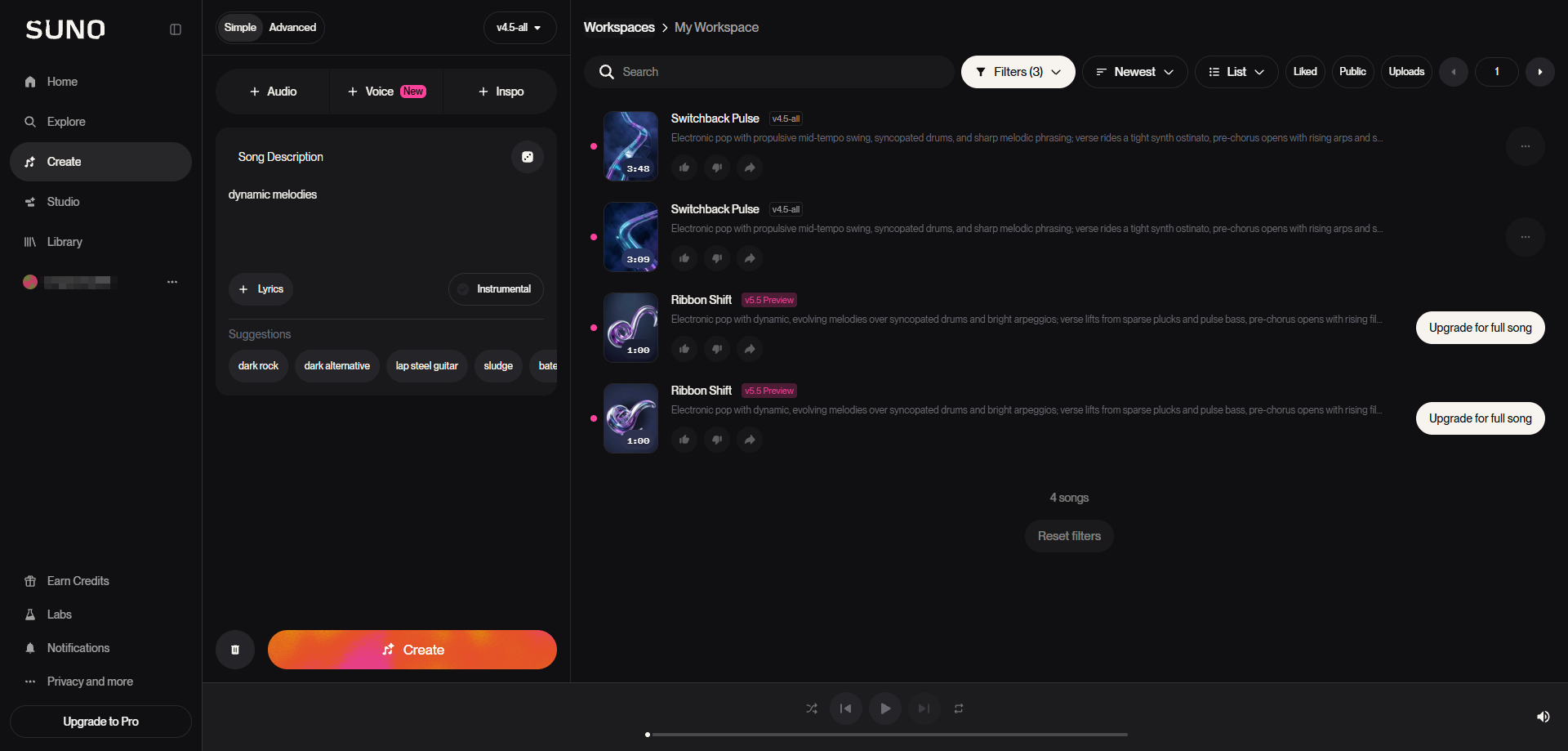
Open your Suno Workspace and find the exact version you want to separate. If you have several similar generations, play the chorus first. It is surprisingly easy to select the wrong take and use credits on a version you did not want.
Step 2: Open Edit and Choose Get Stems
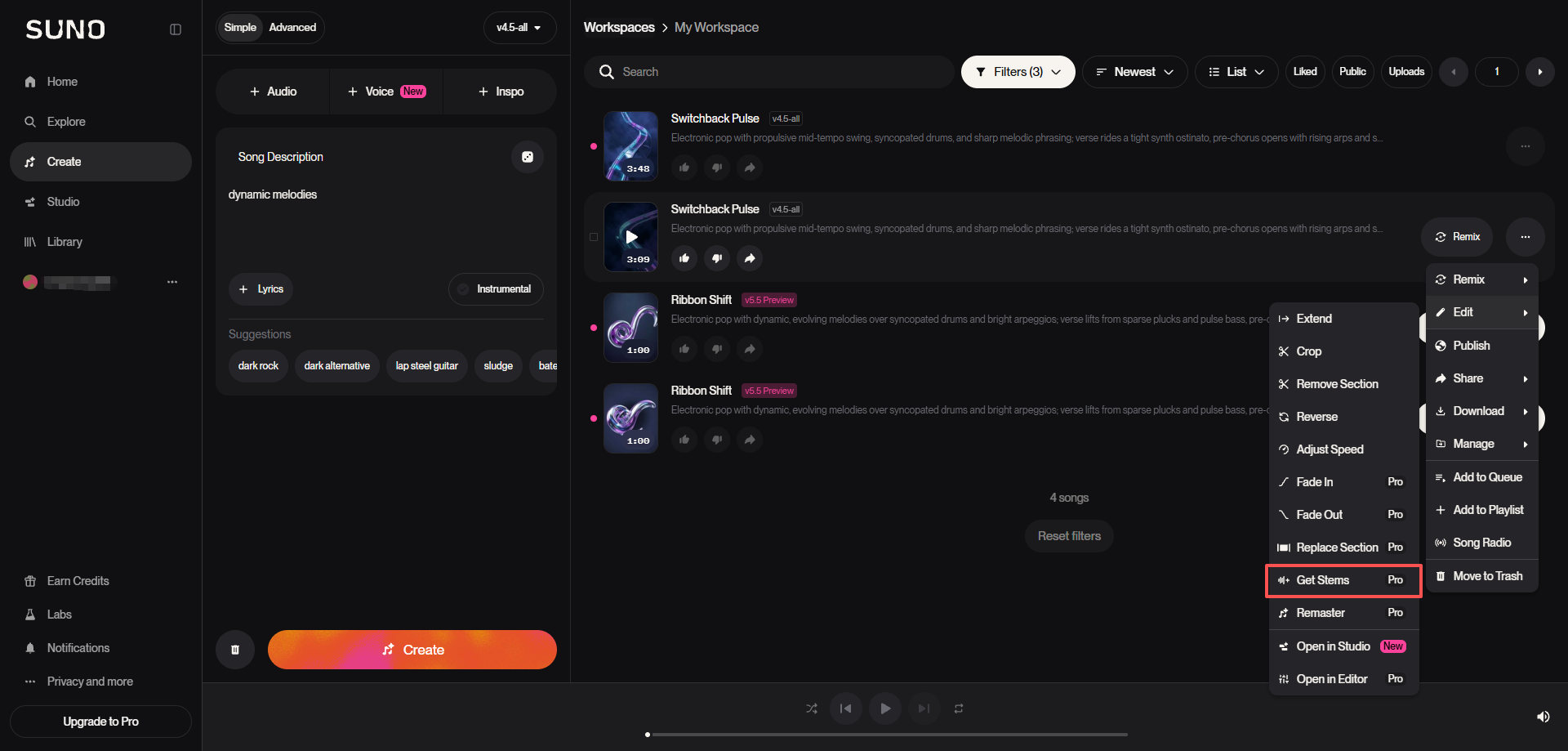
Click the three-dot menu beside the song, open Edit, and select Get Stems. Do not look for it inside the normal Download menu—it is located under Edit. If the option is missing or unavailable, the song or account may not currently have access to stem separation.
Step 3: Choose the Split You Need
- Split from Mix — use this when you only need vocals or a particular instrument.
- Auto Split — use this when you want several tracks for editing in a DAW.
- Advanced Split — use this when you need a more specific instrument or separation setup and the option is available on your account. For a vocal removal, instrumental, or simple remix, start with Split from Mix. A more detailed split is not always a cleaner split.
Step 4: Listen, Then Download
When the stems are ready, preview the chorus and one quieter section before downloading. Listen for vocals leaking into the instrumental, weak drums, or instruments appearing in the wrong track. If the result is not usable, try another split mode instead of forcing the first output into your project.
These stems are separated working tracks, not the original studio multitrack recordings. Download the version that sounds best and keep the full mix as a reference.
Can You Export Suno Stems as WAV or MIDI?
Suno Studio provides three main export paths: Full Song, Selected Time Range and Multitrack. Suno also states that individual clips can be downloaded as high-quality WAV files. Studio is currently a Premier feature, so the options visible in your account may differ from the regular song page.
WAV Export
Use WAV for editing, mixing and repeated processing. It avoids adding another lossy encoding stage and is the safer working format for a DAW. For a production-versus-sharing decision, see the Suno AI WAV vs MP3 guide in Related Guides below.
MIDI Conversion
Use Get MIDI when you need editable notes and timing for a compatible instrument or DAW. Suno's current Studio documentation lists MIDI conversion at 10 credits. MIDI contains performance data rather than the original audio, and conversion accuracy depends on the musical material.
Multitrack Export
Use Multitrack when you want several synchronized parts in a production session. Export the tracks together, import them at the same start point, and verify the reconstructed mix before making arrangement or processing decisions.
Method 2: Alternative Workflow: Using External Stem Separation Tools
If Suno's official stem options are unavailable, use this two-step fallback: first save the available full mix with SunoDown, then process that file with a permitted third-party stem separator.
Step 1: Download the Full Mix with SunoDown
Copy the Suno song URL and paste it into the SunoDown to save the available full mix. Use only music you created, uploaded with permission, or otherwise have the right to process. SunoDown does not unlock paid or restricted stems.
Step 2: Separate the Downloaded File
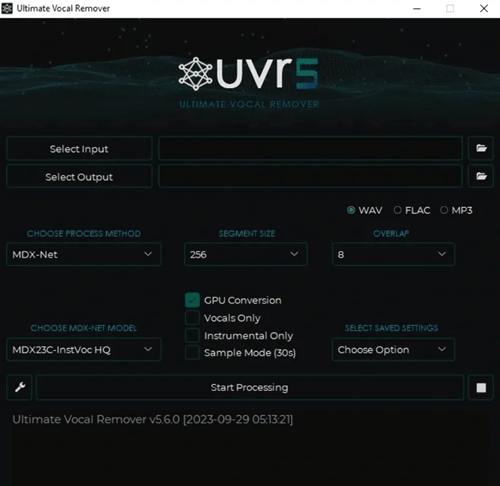
- Import: Add the downloaded full mix to Ultimate Vocal Remover or another permitted separator.
- Select: Choose vocals/instrumental or a vocals, drums, bass and other-instruments model.
- Process: Preview the output and check for vocal bleed, missing transients and instrument leakage.
- Export: Save the separated tracks and align them from the same starting point in your editor or DAW.
Frequently Asked Questions
Can I download Suno AI stems for free?
Suno's official updated stem-separation features are tied to paid plans. Split from Mix and Auto Split are available to Pro and Premier users, while Advanced Split is a Premier feature. A third-party separator may have a free tier, but that is separate from Suno's official workflow.
How do I use SunoDown with a stem separator?
First, paste the valid Suno song URL into the SunoDown and save the available full mix. Then import that file into Ultimate Vocal Remover or another permitted separator to create vocals, instrumental or multi-stem tracks. Only download and process content you have the right to use.
Can I use a SunoDown MP3 for stem separation?
Yes. Download the available full mix with SunoDown, then import the MP3 directly into Ultimate Vocal Remover or another permitted separator. Converting the MP3 to WAV first will not improve its audio quality, and the separated tracks are estimates created from the mixed song rather than original multitrack recordings.
Conclusion
Suno’s official Get Stems feature is the most direct option when it is available for your song and plan. When the required mode is unavailable, the SunoDown + UVR workflow provides a practical two-step alternative: first save the available full mix from an authorized Suno song, then process the file with Ultimate Vocal Remover or another permitted stem-separation tool.
Separation quality depends on the source audio, song arrangement and selected model, so preview the results before using them in a remix or production project.
Ready to separate your next track? Download the available Suno full mix with SunoDown, then continue the workflow in your preferred stem separator.