Keep your downloaded Suno songs alongside the rest of your music in Apple Music. This guide covers importing MP3s on Mac and Windows, organizing a playlist, and getting the songs onto your iPhone.
Listen to Suno Songs in Your Apple Music Library
Music on Mac and Apple Music on Windows let you add saved audio files to your personal library. Importing a Suno song gives you a place to listen to it and organize it in playlists; it doesn’t release the song to Apple Music’s public catalog.
Start on your computer. To listen on iPhone, use Sync Library with Apple Music or iTunes Match, or sync your own files with a cable if you don’t use Sync Library.
Get the MP3 onto Your Computer
First, save the Suno songs you want to keep as MP3s. You can download your songs from the menu in your Suno Library or Workspace. Suno’s download instructions
Put the MP3s in a folder on your computer, such as Music/Suno Songs. Extract any ZIP download before importing. If the files are on your phone, copy them to your computer first.
Play a file once to check that it downloaded correctly before adding it to your library.
How to Import Suno Songs into Apple Music
Import Suno MP3s on Mac
- Open the Music app on your Mac.
- In Finder, open your Suno songs folder and select the MP3s you want to add.
- Drag the files into the Music window, then open Songs in the sidebar and play an imported track.
The steps follow Apple’s Mac import instructions.
Import Suno MP3s on Windows
- Open the Apple Music app on your Windows computer.
- In File Explorer, open the folder containing your MP3s.
- Drag the files into the Apple Music window. Open Songs and check that the imported tracks play.
You can also use Sidebar Actions → Import to select a file or folder. Apple’s Windows import instructions
Put Your Suno Songs in a Playlist
Create a playlist such as Suno Favorites, then drag the imported tracks from Songs into that playlist in the sidebar. This keeps your chosen versions together and makes it easier to select just those songs when syncing with a cable. Playlists on Mac · Playlists on Windows
Keep the source MP3s in a permanent folder. Depending on your import settings, Apple Music may still use those files to play the songs.
Play the Song on Your iPhone
Once the songs play on your computer, choose the method that matches how you use your music library.
Use Sync Library if You Have a Subscription
- Check your Apple Account. Use the same account on your computer and iPhone. Sync Library requires Apple Music or iTunes Match.
- Turn on Sync Library on your computer. On Mac, choose Music → Settings → General. On Windows, open Sidebar Actions → Settings → General in Apple Music. Turn on Sync Library and wait for the cloud library to finish updating.
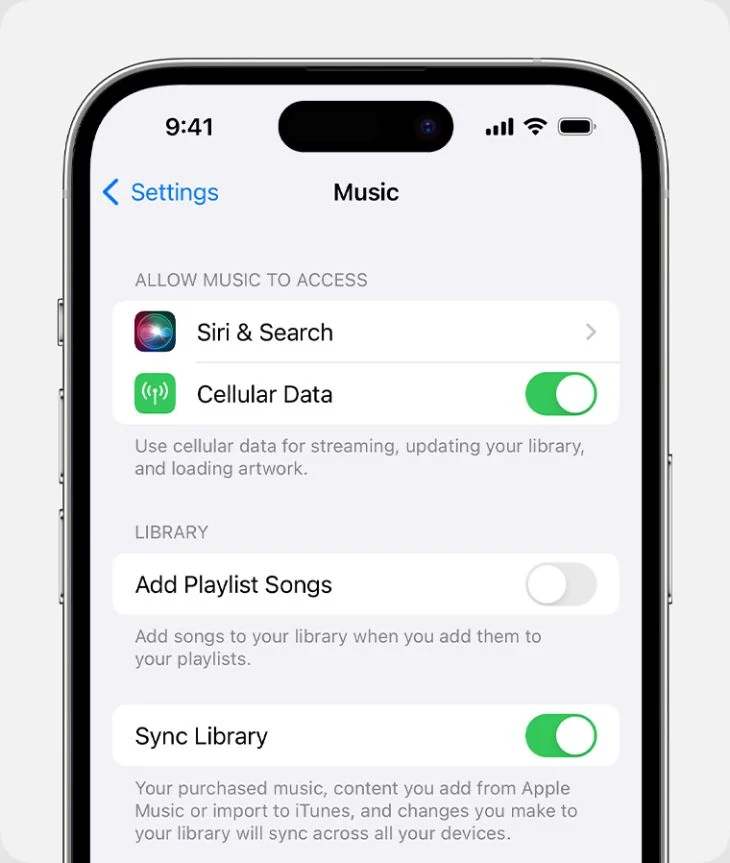
- Turn on Sync Library on your iPhone. Go to Settings → Apps → Music, then turn on Sync Library. On older iOS versions, Music appears directly in Settings. Open Music → Library → Songs and play the track. Apple’s Sync Library instructions
Sync a Playlist with a Cable
Use this route if you don’t use Sync Library. On Windows, install Apple Music as well as Apple Devices before syncing.
- Connect your iPhone to your computer with a USB cable.
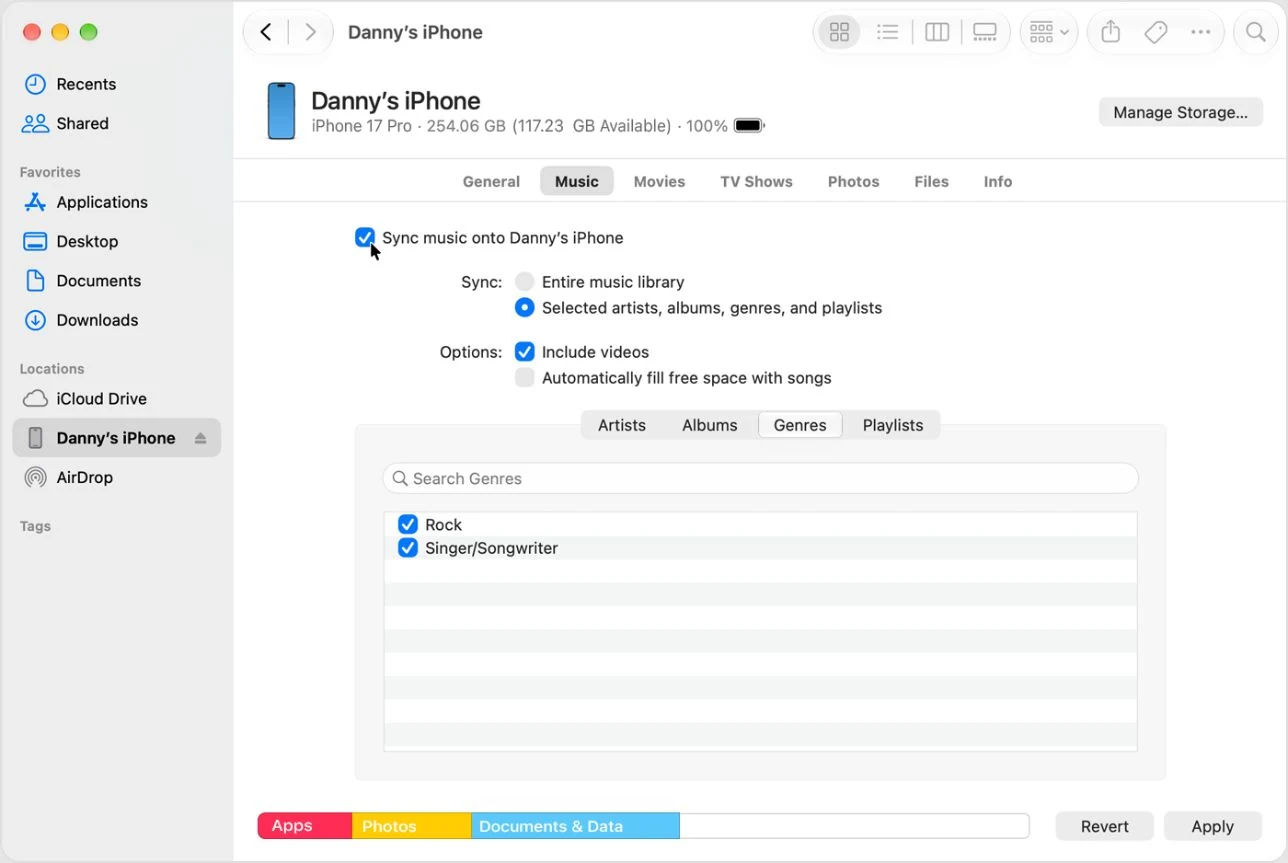
- Select the iPhone in Finder on Mac or Apple Devices on Windows, then open Music in the device settings.
- Turn on music syncing and choose Selected artists, albums, genres, and playlists. Select the playlist you made.
- Click Apply. When syncing finishes, open Music → Library on your iPhone and play a song.
Fix Suno Songs That Are Missing or Won’t Play
Use the checks below if an imported song doesn’t appear on your iPhone or won’t play.
| Problem | Solution |
|---|---|
| The MP3 appears in Files but not Music | Import it into Music or Apple Music on your computer, then complete one of the iPhone sync methods above. |
| A song plays on the computer but is missing on iPhone | For Sync Library, check that both devices use the same Apple Account and inspect the track’s cloud status on the computer. For cable sync, confirm that the right playlist was selected and click Apply. |
| An imported track stops playing after you move the MP3 | Restore the file to its original location or import it again from its new folder. |
| A synced song only plays when you’re online | Download the song in the iPhone Music app before disconnecting from the internet. |
For cloud-status issues, follow Apple’s missing or grayed-out songs help. Before a trip, disconnect from the internet and play a few tracks to check that they’re ready. Our Suno offline listening guide covers preparing your downloads.
Download Suno Songs for Your Apple Music Library
Need the MP3 first? Paste a supported public Suno song link into our SunoDown web tool, click Get downloads, then choose Download MP3 when available. Save the file to your music folder and import it into Apple Music.