
Whether you’ve just created your first viral AI hit or you're a seasoned producer building a library of AI-generated stems, knowing how to download songs from Suno AI with the highest fidelity is a crucial skill.
In 2026, with the launch of Suno v5.5, the platform's architecture has become more complex. Standard “right-click” methods no longer work. This comprehensive tutorial covers every possible method—from simple web tools for beginners to advanced batch scripts for pros.
The "Golden Rule" of Suno Downloads in 2026
Before we dive into the methods, remember: Quality Matters.
Suno v5.5 delivers audio in a segmented stream. If you use a generic recorder, you lose the metadata and dynamic range. For professional results, always aim for the 320kbps MP3 or WAV export.
Method 1: Desktop (PC/Mac) - The Fastest Way
For most users, the desktop workflow is the most efficient. We recommend two primary paths:
Option A: Using SunoDown (Easiest for Beginners)
This is the most reliable method that requires no technical knowledge.
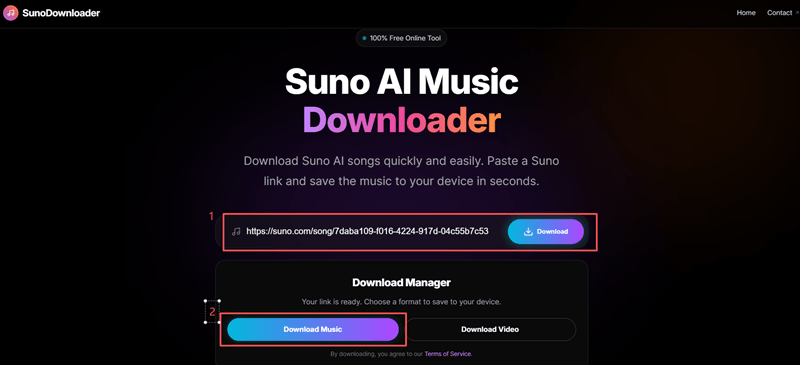
- Copy the Link: Open your song on Suno.com, and then copy the URL from the address bar.
- Paste to SunoDown: Go to SunoDown.com.
- Analyze & Download: Paste the link into the search bar. The tool will parse the v5.5 manifest automatically.
- Save File: Choose “Download Music” and the file will be saved to your computer in MP3 format instantly.
Option B: The "Developer" Method (F12 Inspect)
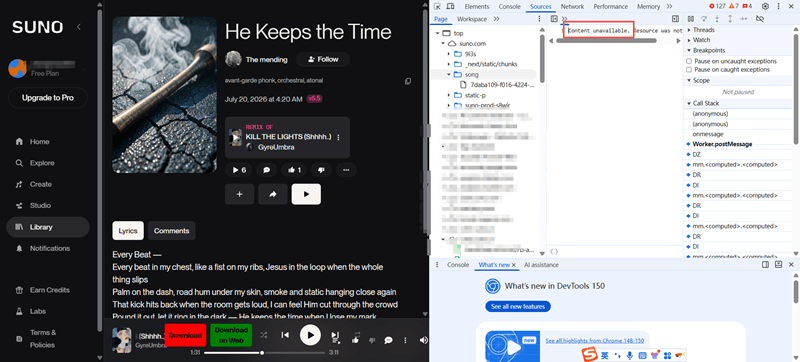
If you don't want to use any third-party tools, you can use the browser's Network tab.
- Press F12 (Inspect) on your browser.
- Navigate to the Network tab and filter by "Media".
- Press Play on the Suno song.
- Look for a large data file (usually a .mp3 or a stream link).
Right-click and
"Open in new tab" to save.
- Note: In 2026, this may only give you a partial segment if the song is encrypted.
Method 2: Mobile Devices (iOS & Android)
Downloading AI music to your phone is essential for sharing on TikTok, Instagram, or Reels.
iOS (iPhone/iPad) Tutorial
Apple’s "Files" system can be tricky, but here is the 2026 shortcut:
- Open the Suno app or website.
- Copy the music URL from its address bar.
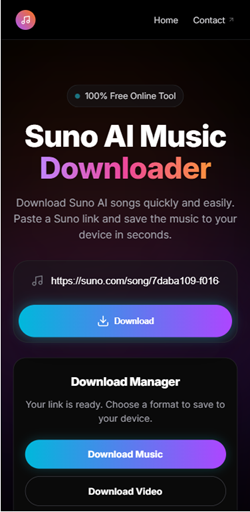
- Open Safari and navigate to SunoDown.com.
- Paste the link and tap "Download Music".
- When the iOS download prompt appears, click "Download". The file will be in your Files App > Downloads.
Android Tutorial
Android users have more flexibility with file management:
- Copy the Suno song link.
- Use the SunoDown Web App (no installation required).
- Once you hit download, the file appears in your "Music" or "Downloads" folder immediately.
Method 3: The "Pro" Secret - Batch Downloading Playlists
Have you generated 50 tracks today and need them all at once? Manual downloading is a waste of time.
How to Batch Download:
- Create a Playlist: On Suno, move all the songs you want to download into a single public playlist.
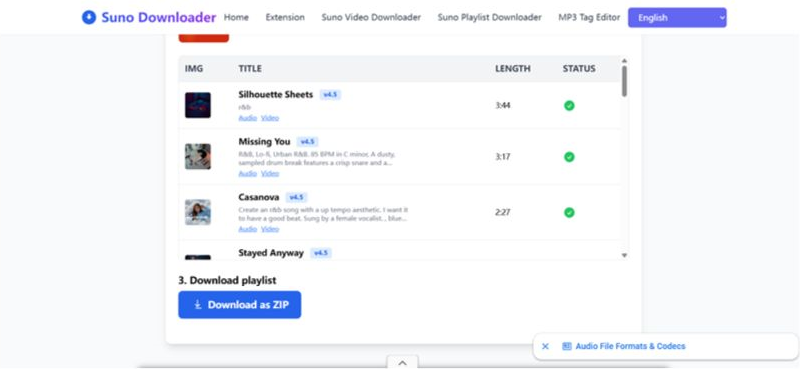
- Use the Batch Parser: Paste the Playlist URL into the SunoDown Playlist Downloader.
- One-Click Export: The tool will generate a list of all tracks. Click "Download as ZIP" to save your entire library in seconds.
Troubleshooting: Why Can't I Download?
Sometimes technology fails. Here are the most common "Suno Download Error" fixes for 2026:
Error 1: "Song is Private" or "Cannot Fetch Data"
- The Cause: Third-party tools like SunoDown cannot access your track if its privacy is locked.
- The Fix: Go back to Suno.com, find your song, click the three dots
(
...), and toggle the visibility to Public. Copy the new share link and try again.
Error 2: The Download Stops at 10 Seconds
- The Cause: You are likely using an outdated generic downloader or the manual "F12 Inspect" method, which only grabs the first HLS chunk of Suno v5.5's new streaming structure.
- The Fix: Switch to a dedicated v5.5 parser like the SunoDown Web App to ensure the entire track is seamlessly assembled.
Error 3: "Invalid URL" Message
- The Cause: Copying the URL directly from the browser's top address bar can sometimes include extra session parameters that confuse the downloader.
- The Fix: Always use the official Share > Copy Link button built directly into the Suno playback interface.
Error 4: "Server Busy" or Network Timeout
- The Cause: Suno's origin servers or the downloader's API might be experiencing peak traffic (often happens during new Suno model updates).
- The Fix: Refresh the downloader page, wait 60 seconds, and try pasting your link again. Your data is safe.
Pro Tips for Better Suno Music Quality
- Avoid Screen Recording: Never use a screen recorder to "save" music. It captures system noise and compresses the audio to low-quality AAC.
- Check the Metadata: When you download via SunoDown, the ID3 tags (Artist Name, Lyrics, Cover Art) are embedded. This makes it much easier to organize your library.
- WAV vs MP3: If you are planning to master the song in a studio, always choose the WAV option if available, as it offers a lossless frequency response.
Conclusion: Your Music, Anywhere
Learning how to download songs from Suno AI shouldn't be a technical headache. By following the steps above—whether you're on a high-end PC or a simple smartphone—you can ensure your AI-generated hits are safe, high-quality, and ready for the world to hear.
Ready to start? Try SunoDown Now and save your first track in 320kbps!