You can turn a downloaded Suno song into an iPhone ringtone with GarageBand, Apple’s music app. Trim a clip to 30 seconds or less, then export it as a ringtone.
Before you start, install GarageBand from the App Store. Use a song you own or have permission to use.
Find Your Downloaded Song
Open Files → Browse and look in iCloud Drive or On My iPhone, usually in Downloads. You need the saved audio file, not a Suno share link.
Cannot find the download? Check how to save and locate the audio file.
If it is stored in the cloud, open it and wait for it to download.
Play the file to check it works, and note where your favorite part begins.
GarageBand imports MP3 files directly; you do not need to convert the download to M4R first.
Keep a backup of the original song if you want to choose a different section later.
Import the Song into GarageBand
- Touch and hold the GarageBand icon on your Home Screen. Tap Create New Audio Recording; no recording is needed.
- Tap Tracks (the stacked horizontal lines) at the top left, then the instrument icon on the left to select the audio track.
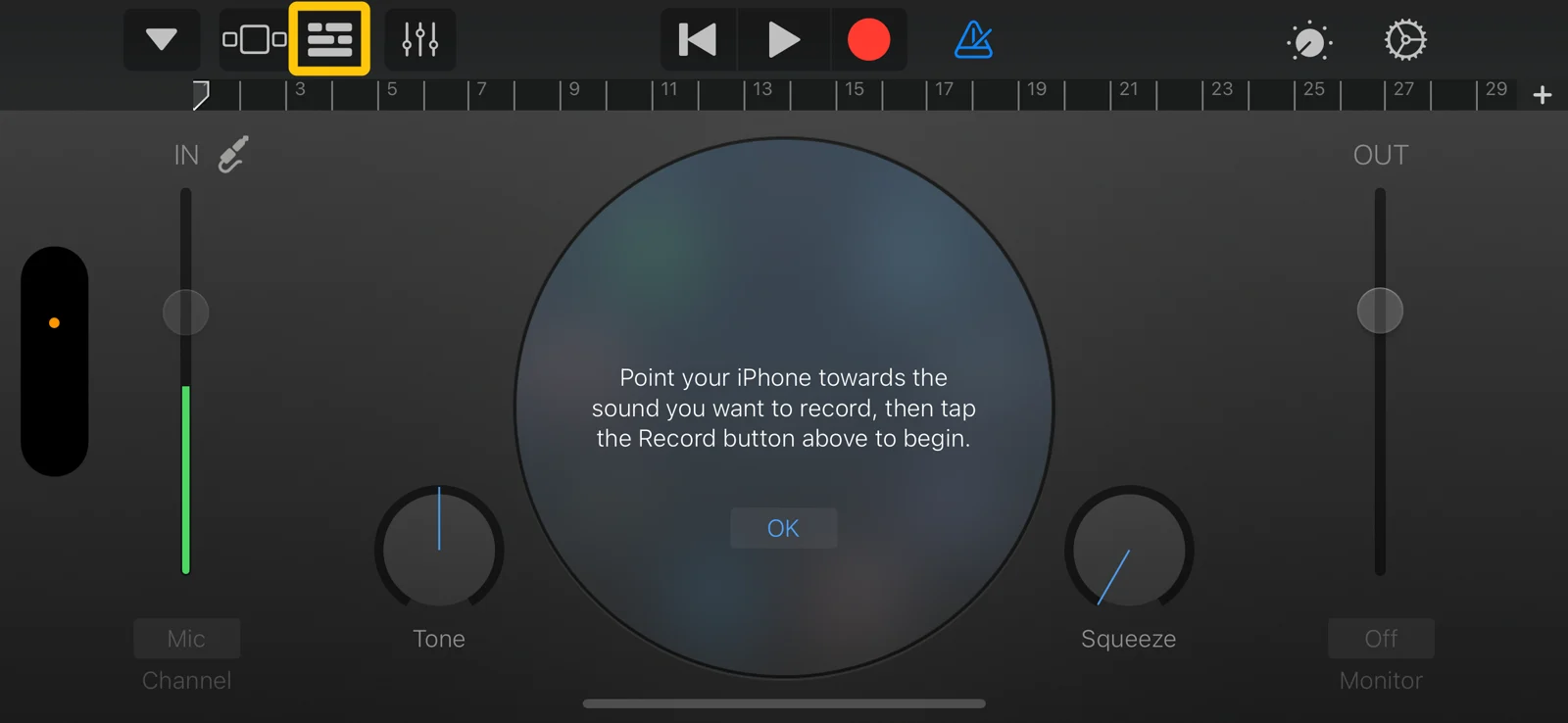
The highlighted button opens Tracks view. You do not need to record audio. Tap the image to enlarge. - Tap + (Song Sections) at the ruler’s right edge → the circled i beside Section A. Turn on Automatic, then tap Done. This lets GarageBand import the full song in the next steps.
- Tap Loop Browser (the loop-shaped icon at the top) → Files → Browse items from the Files app. Find and tap your song.
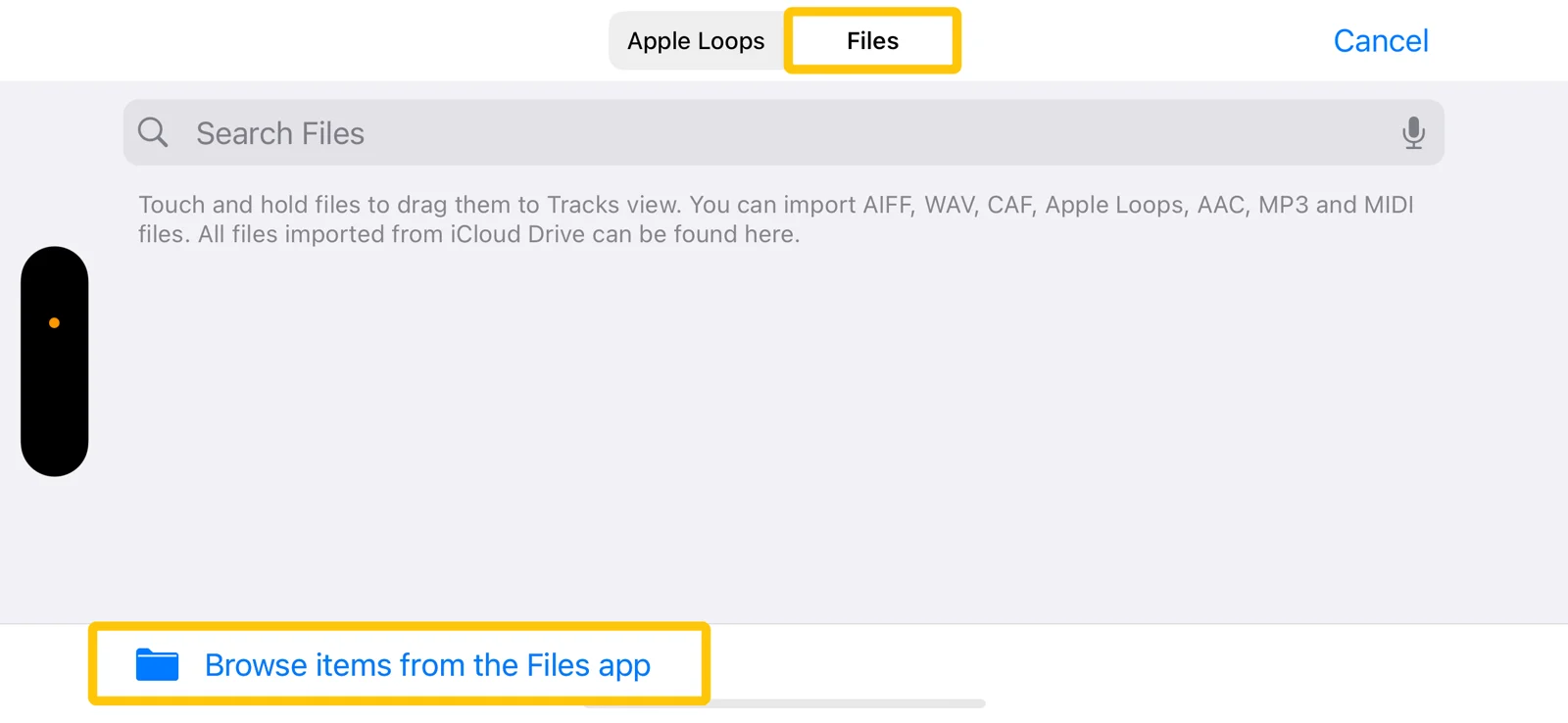
Choose Files, then browse for the audio saved on your iPhone. Tap the image to enlarge. - Back in GarageBand’s file list, touch and hold the song, then drag it onto the audio track at the start of the timeline.
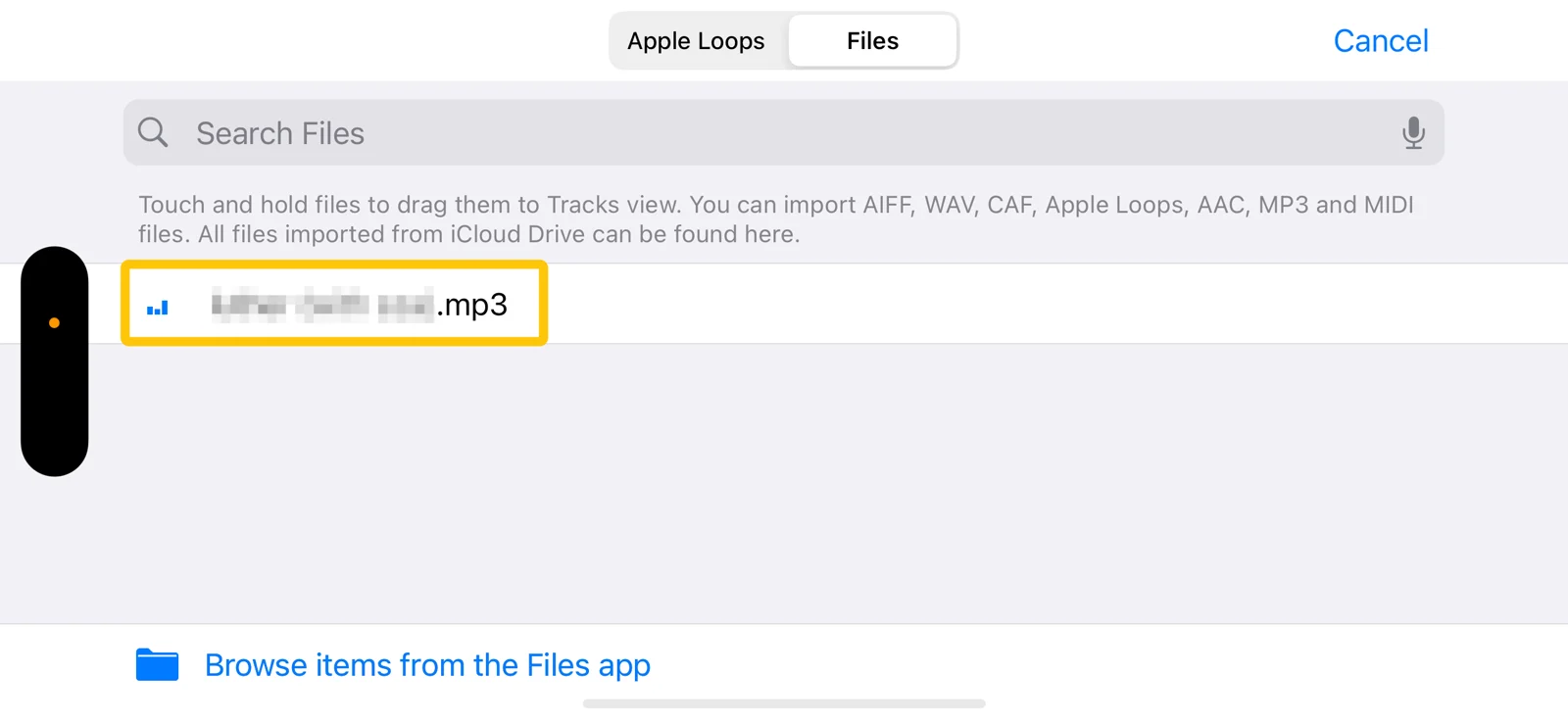
Touch and hold the MP3 file, then drag it into Tracks view. Tap the image to enlarge.
A blue audio clip should appear. Play it to check that the part you want is included. Apple’s illustrated guide shows the buttons.
Trim the Clip to 30 Seconds or Less
If the ruler shows bars and beats, tap Settings (the gear), then Song Settings if shown. Turn on Time Ruler to see minutes and seconds.
- Pinch two fingers together over the tracks to zoom out until you can see both ends of the clip. Tap the clip, then drag its left edge to where you want the ringtone to begin.
- Drag the middle of the clip all the way left so it starts at 0:00.
- Drag the right edge left so the clip ends at or before 0:30. Touch and hold the edge to zoom in for a more precise trim. Choose a natural stopping point.
- Tap Go to Beginning, then Play. Listen to the whole clip and adjust the edges if it starts or stops mid-word.
For help with the trim handles, see Apple’s region editing guide.
If you accidentally added other clips, tap each unwanted clip, tap it again, then choose Delete.
Export and Set Your Ringtone
- Tap Navigation (the down arrow at the top left) → My Songs to save the project.
- Tap More (…) → Select. Select your project, then tap Share → Ringtone.
- Name it, for example Night Bus Ringtone, and tap Export.
If GarageBand says the ringtone is too long, choose Cancel to adjust it yourself or Continue to shorten it automatically. Preview the exported tone to check the ending.
Set the Ringtone
When export finishes, tap Use sound as. Choose Standard Ringtone for your default tone, or Assign to contact and select a person to use it for that caller only.
To change it later:
- Default ringtone: Settings → Sounds & Haptics → Ringtone. Tap your exported tone.
- For one contact: Open Contacts, select the person, then tap Edit → Ringtone. Choose your tone and save the changes.
Fix Common Problems
Audio missing or incomplete: Open the file in Files and let it finish downloading. If GarageBand imports only part, delete that clip, set Section A to Automatic, and import again.
Ringtone missing: Make sure you exported the GarageBand project as a Ringtone. Then look for its name in Settings → Sounds & Haptics → Ringtone.
Calls are silent: Check Silent mode, Focus, and ringer volume.
Wrong clip or a pause at the start: Adjust the trim, move the clip to 0:00, and preview it. Export with a new name and select that tone.
Make Your Next Ringtone
To try another song, paste a supported public Suno song link into SunoDown and tap Get downloads, then choose Download MP3. Save the file to your iPhone and follow the steps above to turn your favorite part into a ringtone.